Basic Renaming
Batch Rename
Section titled “Batch Rename”When you activate the tool, a dialog box will appear with a text field initially populated with the name of the first item in your selection.
If you pressed Enter, the selected objects will be renamed to
Numbering
Section titled “Numbering”If there are no numbers in the text input, RIn.Rename will automatically append numbers to the names, ensuring each object in Blender’s scene remains unique.
The default numbering format is .001, which is zero-padded to three digits. Numbering starts at 1, with . as the separator.
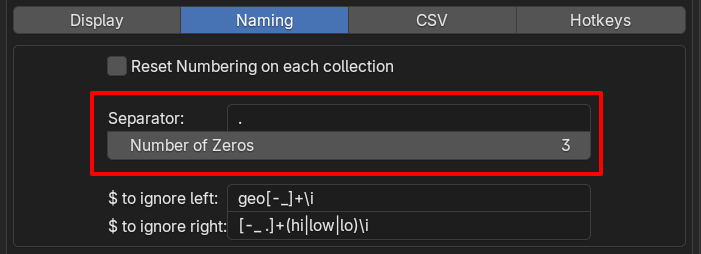
You can configure the default numbering format (the separator character and the number of digits) in the Addon Preferences.
Default numbering is applied when renamed results for multiple objects aren’t unique:
Example 1: (no numbering in the text input):
You can override the numbering format by adding numbers in your text input:
Example 2:
Example 3:
You can start at a specific number:
Alphabet Numbering token: @
Section titled “Alphabet Numbering token: @”You can use ’ @ ’ to number with alphabets (A-Z).
Numbering Gotcha!
Section titled “Numbering Gotcha!”Follows Selection Order
Section titled “Follows Selection Order”When you select or deselect objects in the viewport, this tool keeps track of the selection order. This ensures that when you apply numbering, the numbers follow the exact order in which the objects were selected.
Comma Rename
Section titled “Comma Rename”You can rename multiple objects at the same time using comma.
Note: Whitespaces surrounding text are trimmed / stripped
If you type just a comma ’ , ’ and press Enter, the text field will automatically populate with the names of the selected objects.
- Press Enter, text field becomes:
Text Field:
From here, you can modify the names as needed. For example:
Search and Replace
Section titled “Search and Replace”Use the token ’ / ’ to replace text.
Remove text
Section titled “Remove text”Leave the part after ’ / ’ blank.
The will remove any occurance of text_to_remove in the names